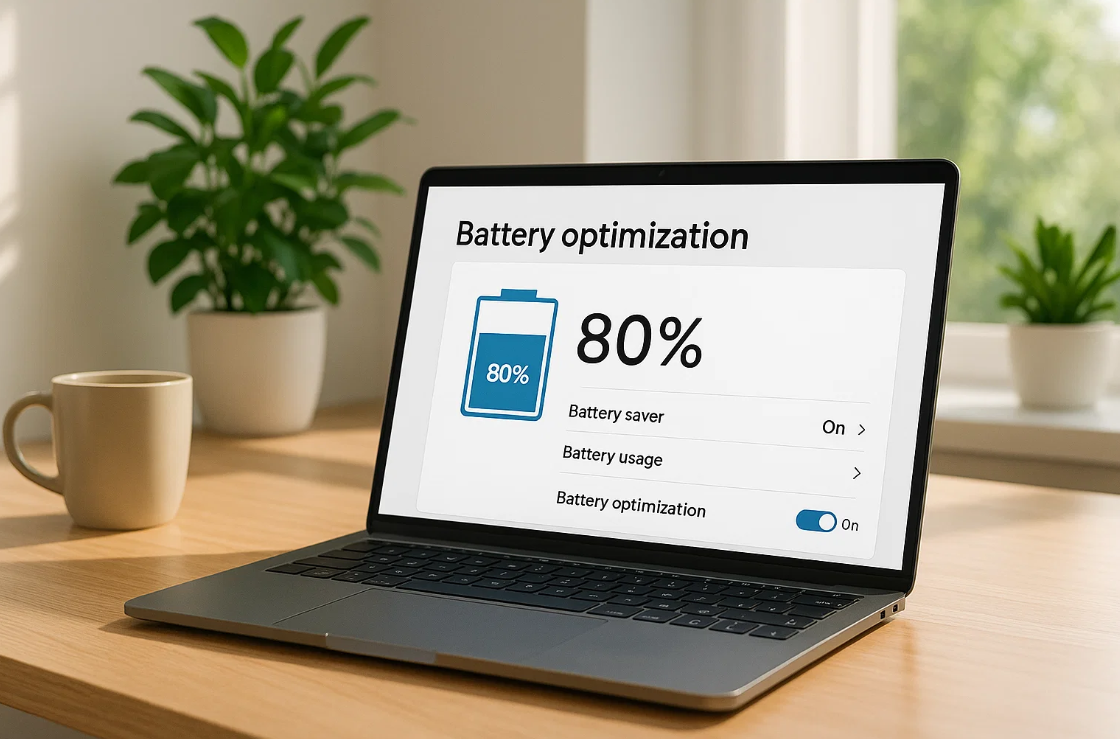
A lot of users notice their laptop’s battery runtime reducing after just about two years, which leads to constantly depending on a charger.
Unlike other laptop parts, batteries degrade with every charging cycle; however, poor habits, like overcharging, overheating, or leaving background apps on the run, can speed up battery drainage.
Therefore, by making small and constant changes, you can extend the life of your battery.
This how-to guide walks you through the practical tips to optimize laptop battery, correct common issues, and consider when replacement or purchasing a new battery becomes crucial.
By the end, with the right battery optimization guide, you will be able to work your laptop longer, no matter what your use is.
Understanding Laptop Battery Performance
Why Do Batteries Degrade?
All batteries have a limited number of charging cycles. Every time you completely charge and discharge your laptop, you have used one cycle.
Eventually, this reduces the overall storage capacity, which indicates that the battery won’t last the duration of a single charge.
Reasons for Faster Battery Wear
Many habits make batteries deteriorate faster than they should:
- Keeping the laptop plugged in for longer periods
- The device overheating
- Running multiple programs at the same time
- Often draining to 0%
Recognizing these problems early means you can take steps to minimize unnecessary damage.
How to Optimize a Laptop Battery
- Tuning Power and Display Settings
Power Management Modes
Most laptops come with integrated energy modes, like “Battery Saver”.
Switching to these types of modes reduces background activity and lowers performance a bit, but still ensures a much longer battery lifespan.
Screen Brightness and Timeout
A display with high-level brightness can significantly lower the energy consumption of your laptop. To save power, lower the brightness to a comfortable level.
Setting the screen to switch off automatically after a short time of inactivity also avoids drainage when the laptop is left unattended.
- Handling Applications and Connectivity
Minimizing Background Activity
Many programs continue running quietly, even when you don’t need them. Closing unused apps enhances speed and lowers battery drain.
Controlling Wireless Features
Wireless Features, such as Bluetooth and WiFI, consume stable loads of power. Turning them off when not in use helps to prolong laptop runtime.
For offline tasks, disabling connectivity could add more time to the life of a battery.
- Keeping the Battery Healthy
Temperature Control
Too much heat is one of the biggest factors in reducing battery health. Using a laptop on a bed or couch can prevent ventilation and lead to overheating.
To avoid your battery from overheating, put your laptop on a hard and flat surface, or use a cooling pad. A cooler laptop defines a healthier battery.
Charging Habits
Keeping your battery fully charged at all times, or using it to zero percent, are practices that reduce a battery’s lifespan.
Ideally, you should keep the battery between 20% and 80%. Having this balance prevents chemical stress and doesn’t allow quick battery degradation.
Troubleshooting Battery Problems
Battery Accuracy Problems
At times, laptops display the wrong percentage of remaining power. These battery accuracy issues may cause the system to shut down without notice.
Hence, updating your operating configuration and drivers often solves the issue.
Battery Performance Adjustment
With repeated problems, you may require laptop battery calibration. This process resets the system’s ability to precisely read charge levels.
Steps for Calibration:
- Charge to 100%.
- Allow it to discharge fully until the laptop powers off.
- Recharge again to 100% without interruption.
Smart Usage Tips
Sleep and Hibernate Modes
Never leave the laptop on when you are not using it. Use Sleep mode for short breaks and Hibernate mode for longer ones.
Sleep mode only consumes a little bit of energy, while Hibernate saves your work, without battery consumption.
Application Updates
Keeping your system updated is important. Manufacturers often release enhancements that make laptops more effective with power usage.
Upgrading both the operating system and hardware drivers aids in expanding battery life without much effort.
Practical Tips for Daily Use
Here are a few easy adjustments that make a huge difference to extend run-time and protect lasting battery health;
- Lower audio volume or mute when not required
- Use dark mode to minimize screen energy
- Unplug devices like external hard drives when not in use
- Open fewer browser tabs when working on battery power
Replacement and Upgrade Options
Looking at Laptop Battery Sale Options
Even with the best care, every battery ultimately degrades, which then needs replacement. Considering a laptop battery for sale is, therefore, a smart step.
Sales give purchasers access to original or certified batteries through dependable sources, usually at reduced costs.
This not only guarantees safety and compatibility but also helps users save costs when upgrading their laptop’s battery.
Knowing When to Buy a New Laptop Battery
You should buy a laptop battery if:
- It no longer charges completely
- The device shuts down suddenly
- Runtime is quite short, even after calibration
External Power Solutions
For users who travel often or require extra runtime, external charging solutions can serve as a practical solution.
Portable power banks for laptops provide several hours of backup, letting you work without interruption.
Other options, such as docking stations, deliver stable power and minimize strain on the internal battery during longer working sessions.
Tips for Using External Power Devices:
- Select a power bank with adequate capacity for your laptop model.
- Make sure docking stations are compatible with your laptop’s voltage, plus ports.
- Avoid cheap and uncertified chargers that risk damaging the battery.
Conclusion
Laptop batteries are delicate components; however, with the needed care, they can remain effective and notably last for longer periods.
By adjusting power settings, shutting off useless background applications, refining brightness, and controlling heat, you can increase everyday laptop usage while protecting long-term battery health.
Regular maintenance, like checking battery health and calibrating, guarantees stable laptop performance.
In addition, for a smoother and more reliable laptop use, it is essential to replace your battery if it no longer works properly.
Leave a Reply